District Light Account Verification for Withdrawals: What Documents You Need
District Light Account Verification for Withdrawals: What Documents You Need
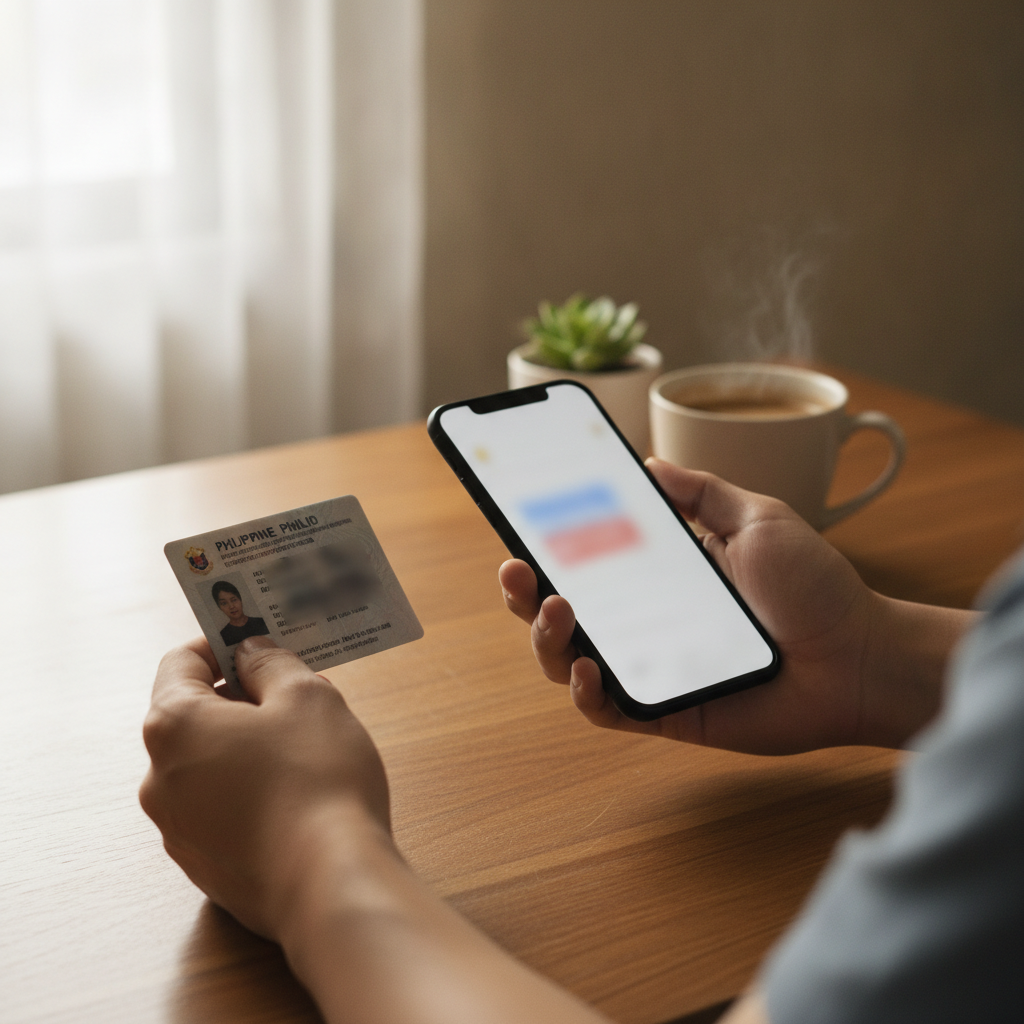
If you're ready to cash out winnings from District Light but the platform is holding your withdrawal pending verification, you're not alone. Most players hit this step when they request their first payout to GCash, Maya, InstaPay, or PESONet. This guide walks through exactly which documents District Light requires, how to submit them from your Android phone, and what to expect while your account is under review.
This page is for players 21 and over only. Set deposit limits and take breaks if betting stops being fun.
Why District Light Asks for ID Before Processing Your First Cashout
District Light requests identity and payment-method verification before approving withdrawals for a few reasons:
Age confirmation. The platform is restricted to players 21 years and older. Verifying a government-issued ID confirms your birthdate meets the legal threshold.
Account ownership. Submitting documents ensures the person who created the account is the same person withdrawing funds. This prevents unauthorized access if someone else gets hold of your login credentials.
Payment-method matching. When you cash out to GCash, Maya, or a bank account, District Light checks that the name on your ID matches the name on your e-wallet or bank record. Casinos and sportsbooks in the Philippines typically enforce this "same-name rule" to comply with anti-money-laundering practices.
Preventing duplicate accounts. By tying each account to a verified identity, District Light discourages players from opening multiple accounts to abuse bonuses or promotional offers.
You usually won't be asked to verify during sign-up or your first deposit—the check typically triggers when you submit a District Light withdrawal request for the first time. Some players also see a verification prompt if they change their registered e-wallet number or bank details, or if the platform flags unusual activity.
Accepted Documents: Valid ID, Proof of E-Wallet or Bank Account Ownership
District Light's verification process asks for two main categories of documents:
1. Government-Issued Photo ID
You need to submit one clear, color photo of a valid Philippine ID. Accepted forms typically include:
- Philippine passport
- Driver's license (LTO)
- UMID (Unified Multi-Purpose ID)
- National ID (PhilSys)
- SSS ID
- Voter's ID
- Postal ID
- PRC license (for professionals)
Make sure the ID is current and not expired. District Light will reject documents with expiry dates that have already passed. If your ID has no expiry date printed (such as some older voter's IDs), it's usually accepted, but check the upload instructions in your account dashboard for any recent policy changes.
All four corners of the ID must be visible in the photo. Cropped images or screenshots where edges are cut off often lead to rejection.
2. Proof of E-Wallet or Bank Account Ownership
Because most Filipino players fund their accounts and request District Light GCash or Maya withdrawals, the platform wants to confirm that the e-wallet or bank account belongs to you. Acceptable proof includes:
- GCash: A screenshot of your GCash profile screen showing your full name and registered mobile number. Open the GCash app, tap your profile icon, and capture the page that displays your verified name.
- Maya: A screenshot of your Maya account details showing your full name and mobile number. Navigate to "Profile" or "Account Info" and take a clear screenshot.
- Bank account (InstaPay / PESONet): A photo or screenshot of a recent bank statement, deposit slip, or the bank app's account summary page. The image must show your full name, account number, and the bank's logo or letterhead. Statements older than three months are sometimes rejected, so use a recent document.
The name on your e-wallet or bank record must match the name on your government ID exactly. Middle initials, suffixes (Jr., Sr., III), and spelling variations can cause delays. If there's a mismatch—for example, your GCash is registered under a nickname or your bank account uses your maiden name—update those records with GCash, Maya, or your bank before you submit documents to District Light.
How to Upload Photos Clearly on Mobile and Avoid Rejection
Most District Light players verify from an Android phone, so here's how to capture and submit documents without running into common upload errors:
Use good lighting. Take photos in daylight or under bright indoor light. Shadows, glare, and dim lighting make text hard to read and often trigger automatic rejections.
Hold your phone steady. Blurry images are the top reason documents get sent back. Rest your elbows on a table or use both hands to keep the camera stable. If your phone has a portrait or document-scan mode, use it.
Capture the entire document. Lay your ID flat on a contrasting background—a dark ID on a white table works well—and frame the shot so all four edges are visible with a small margin around them. Don't cover any part of the ID with your fingers.
Avoid flash reflections. If your ID has a laminated surface, the camera flash can create a bright spot that hides your photo or signature. Turn off the flash and rely on natural or overhead light instead.
Screenshot e-wallet profiles correctly. For GCash or Maya, open the app, navigate to your profile, wait for the page to load fully, then take a screenshot. Make sure your phone's status bar (battery, signal) doesn't cover your name or number. Crop the screenshot if needed, but keep all key details visible.
Check file format and size. District Light typically accepts JPG, JPEG, and PNG files. Most phone cameras and screenshot tools save in these formats by default. If an upload fails, check that your file isn't too large—some platforms cap uploads at 5 MB or 10 MB. You can reduce file size using a free compression app or by lowering your camera's resolution slightly.
Submit through the official upload portal. Log in to your District Light account on the app or mobile web, go to "Account," "Verification," or "My Documents" (the exact label varies), and follow the on-screen prompts. Avoid emailing documents unless support specifically asks you to—email submissions can get lost or take longer to process.
Double-check before hitting submit. Review each image: Is the text readable when you zoom in? Are the colors accurate? Can you see your full name, photo, and ID number? If anything looks unclear to you, it will look unclear to the verification team.
Verification Turnaround Time and What to Do If Delayed
Once you upload your documents, District Light's compliance team reviews them manually. Typical turnaround is 24 to 72 hours on business days. Some players report approval within a few hours, while others wait up to three business days, especially if they submit over a weekend or Philippine public holiday.
You'll receive a notification via SMS, email, or in-app message when your account is verified. At that point, any pending District Light withdrawal will move into processing. GCash and Maya payouts usually arrive within a few hours after approval; InstaPay bank transfers can take a few hours, and PESONet may take one business day.
If verification is delayed beyond 72 hours, here's what to do:
- Check your account dashboard or messages. The team may have flagged an issue—blurry photo, name mismatch, expired ID—and requested a new upload. Look for an email or in-app alert explaining what went wrong.
- Re-upload corrected documents. If your first submission was rejected, fix the problem (better lighting, current ID, matching names) and submit again. The clock resets, so expect another 24–72 hours.
- Contact District Light support. Use the live chat on the District Light app or website, or send an email if chat is offline. Provide your registered mobile number or account username and mention that you're waiting on withdrawal verification. Support can check the status and sometimes escalate urgent cases.
- Avoid submitting duplicate requests. Uploading the same documents multiple times or opening several support tickets can slow things down. Submit once, wait for feedback, and follow up if you don't hear back within three business days.
Common reasons for rejection or delay:
- Expired or unclear ID. Renew your ID if it's past the expiry date, and retake the photo in better light.
- Name mismatch. Your GCash says "Juan Reyes" but your ID reads "Juan P. Reyes Jr."—update your e-wallet profile to match your legal name.
- Wrong document. You uploaded a student ID or company ID instead of a government-issued photo ID.
- Partial screenshot. Your e-wallet screenshot cropped out your full name or mobile number.
- File too large or wrong format. Compress images or convert HEIC files (iPhone default) to JPG before uploading.
If the platform approves your documents but your District Light withdrawal is still on hold, the delay may be unrelated to verification—check your withdrawal method's processing time and daily limits, or confirm that you've met any wagering requirements tied to bonuses.
Gamble Responsibly – 21 and Over Only
District Light is for players 21 years of age and older. Before you chase a big win or try to recover a loss, remember that casino games and sports betting are meant for entertainment, not guaranteed income. Use the deposit-limit and self-exclusion tools in your account settings if you need to slow down. For confidential help, contact the National Center for Mental Health's crisis line or local support groups that assist with gambling-related concerns.
Quick recap: District Light requires a valid government ID and proof of e-wallet or bank ownership before processing your first cashout. Take clear, well-lit photos on your mobile phone, ensure names match exactly, and submit through the in-app verification portal. Most reviews finish within 24–72 hours; if yours is delayed, check for rejection messages and contact support with your account details. Once verified, your GCash, Maya, InstaPay, or PESONet withdrawal will proceed according to the platform's standard processing times.